
Session-Lotse.
Anyone who works with Claude Code soon has five terminals open. Lotse is the command center for them: it shows every session with its state, next step and todo list, arranges the terminals on your monitors and continues sessions later – from your iPhone too. If Claude Code runs on a server or in a VM, Lotse brings those sessions in as well. No account and no telemetry.
Beta · AI Terminal Companion for Claude Code
- macOS 14or later
- Windows 11x64
- Signedon both systems

What sets Lotse apart
Five features that keep many sessions organized.
-
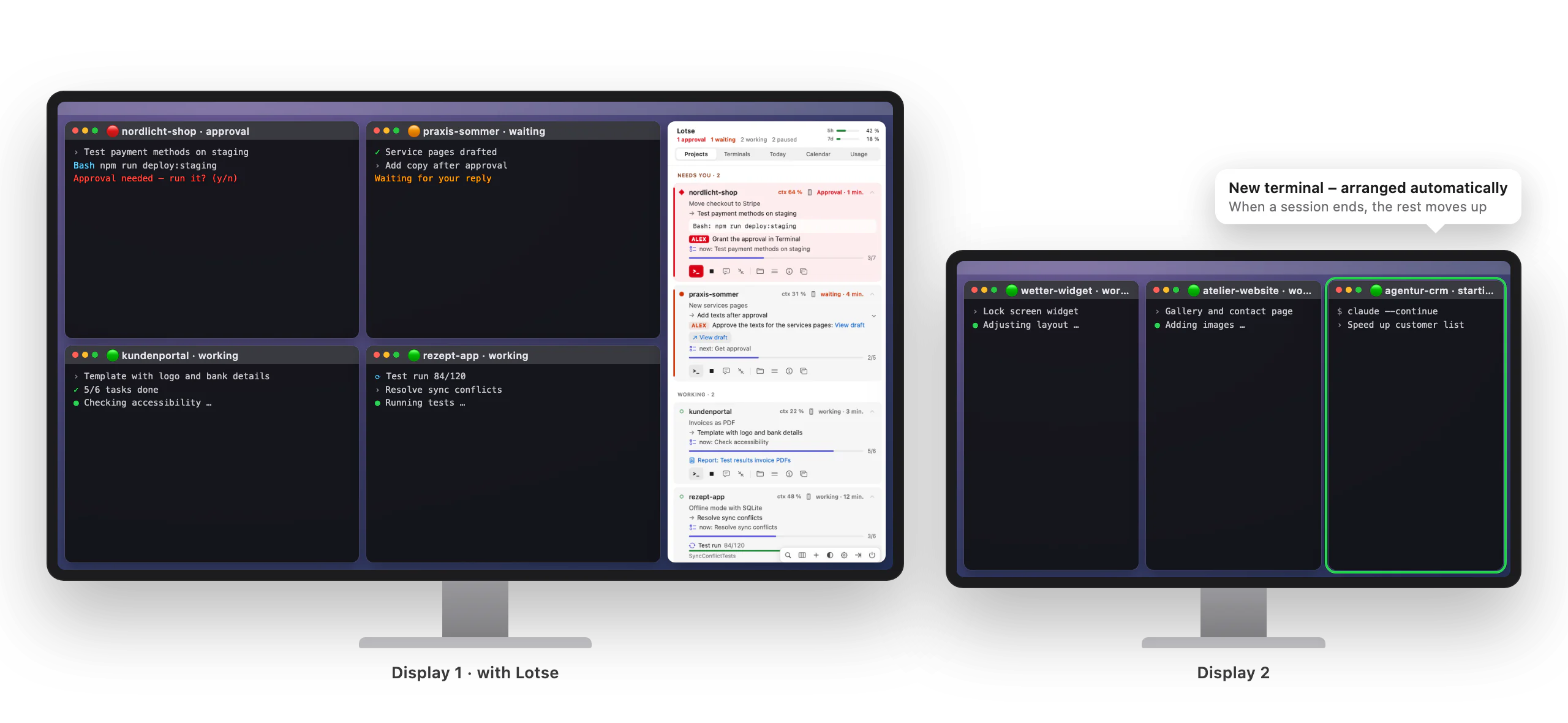
Terminals arrange themselves
One click spreads all Claude terminals across one or more monitors. You choose once on the monitor card which monitors Lotse uses. The windows share the space according to monitor size, and the Lotse window stays clear.
With automatic arranging switched on, Lotse keeps up: when a terminal is added or a session ends, everything moves into place again.
-
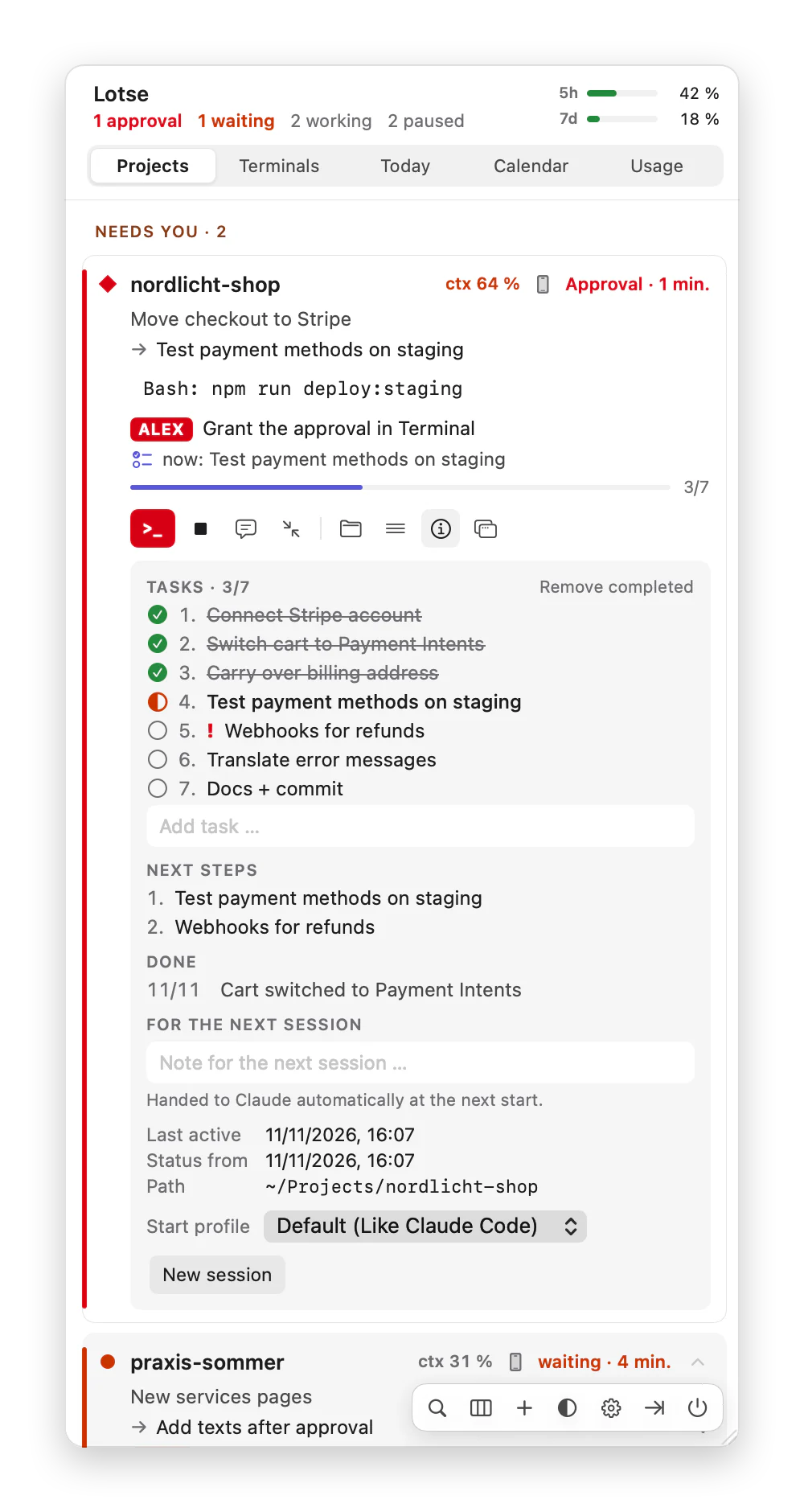
End sessions cleanly, continue later
Instead of leaving terminals open “because there was something else”, you end sessions cleanly. “End” has Claude document first: changelog, open items and project status. Then Lotse closes the terminal.
The project stays in the list as “paused”, with its next step. “Continue” opens a new terminal in the right folder and picks up the last conversation. Only what is actually working keeps running, and nothing gets lost.
-
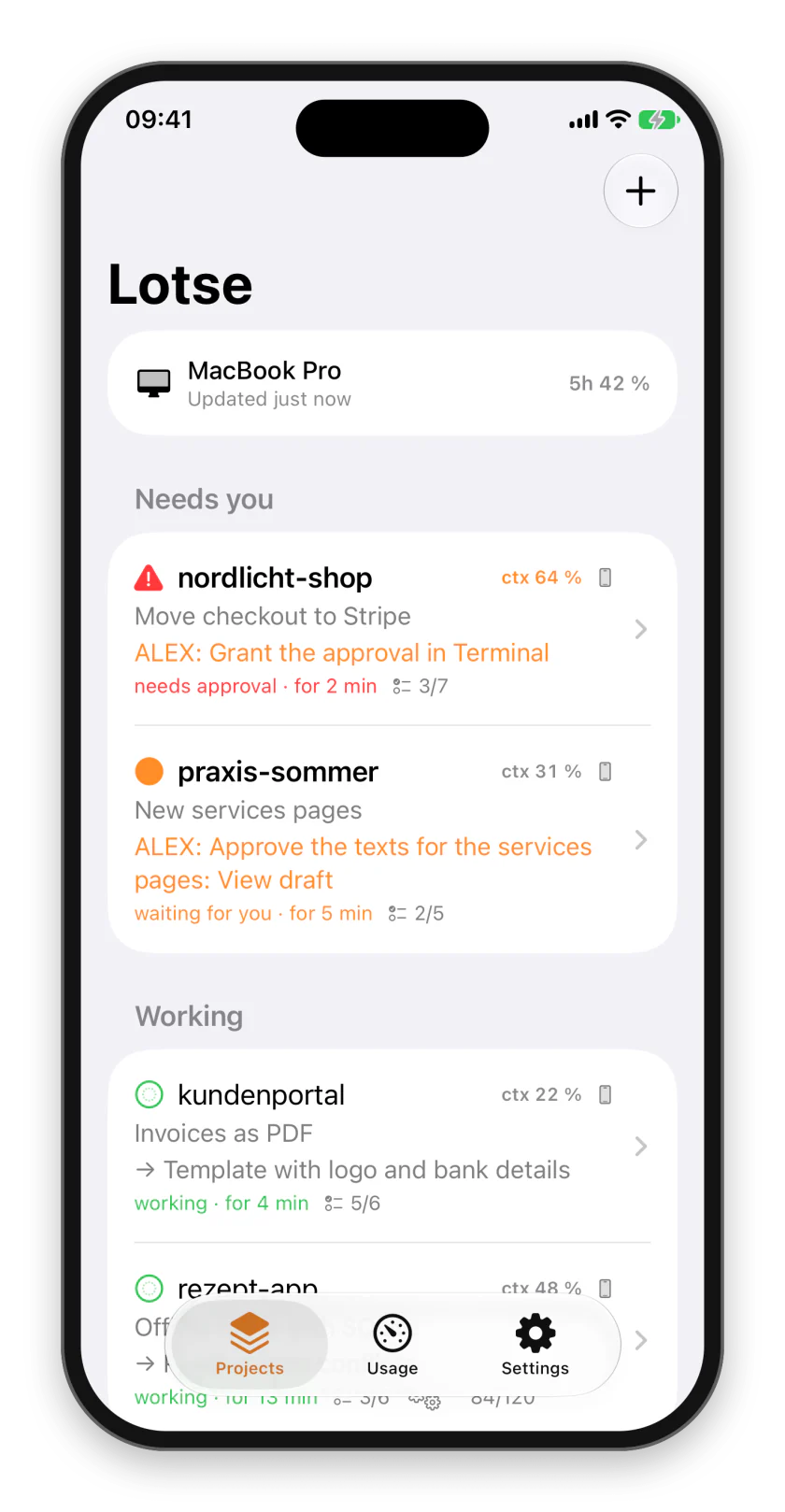
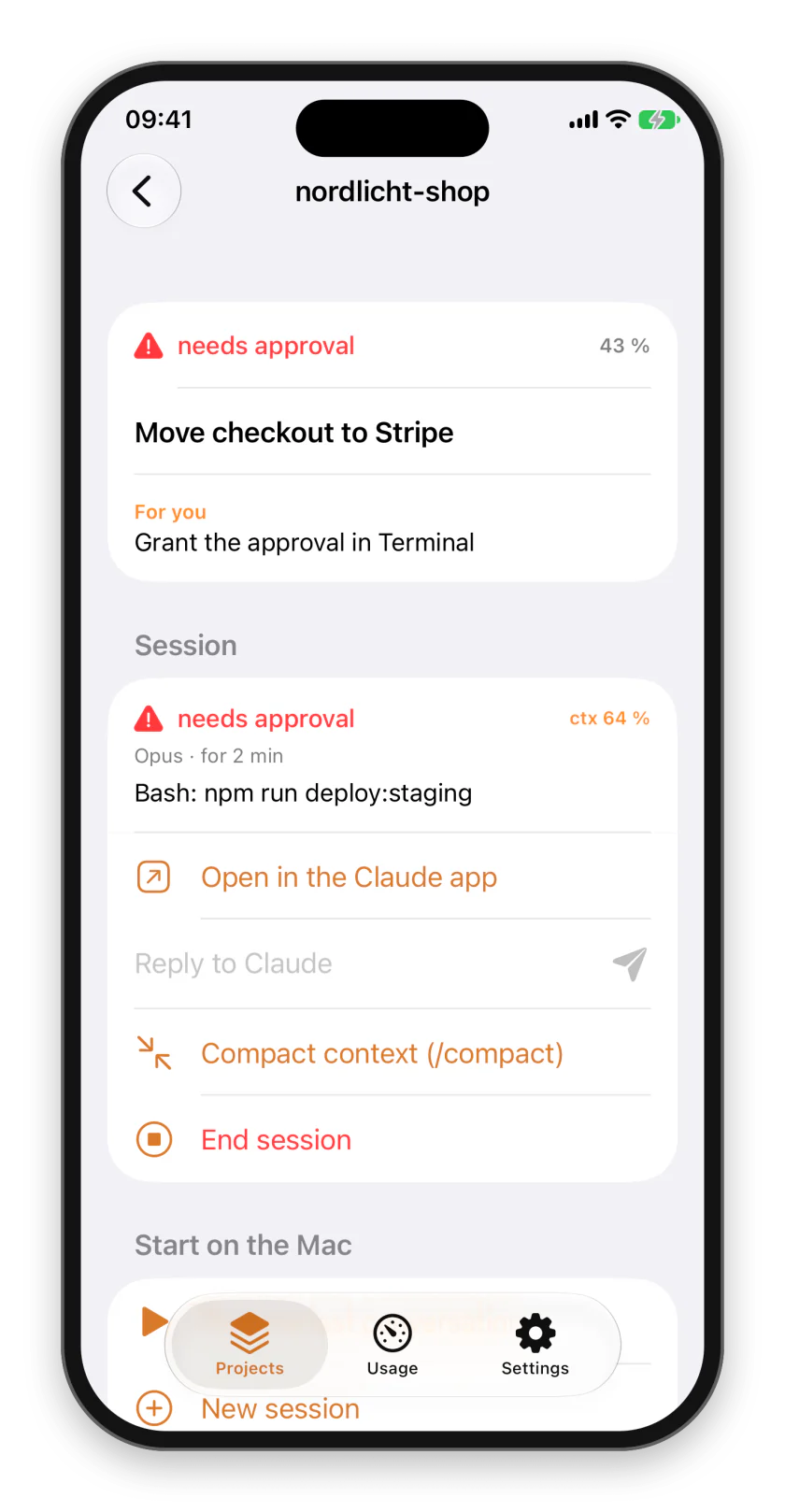
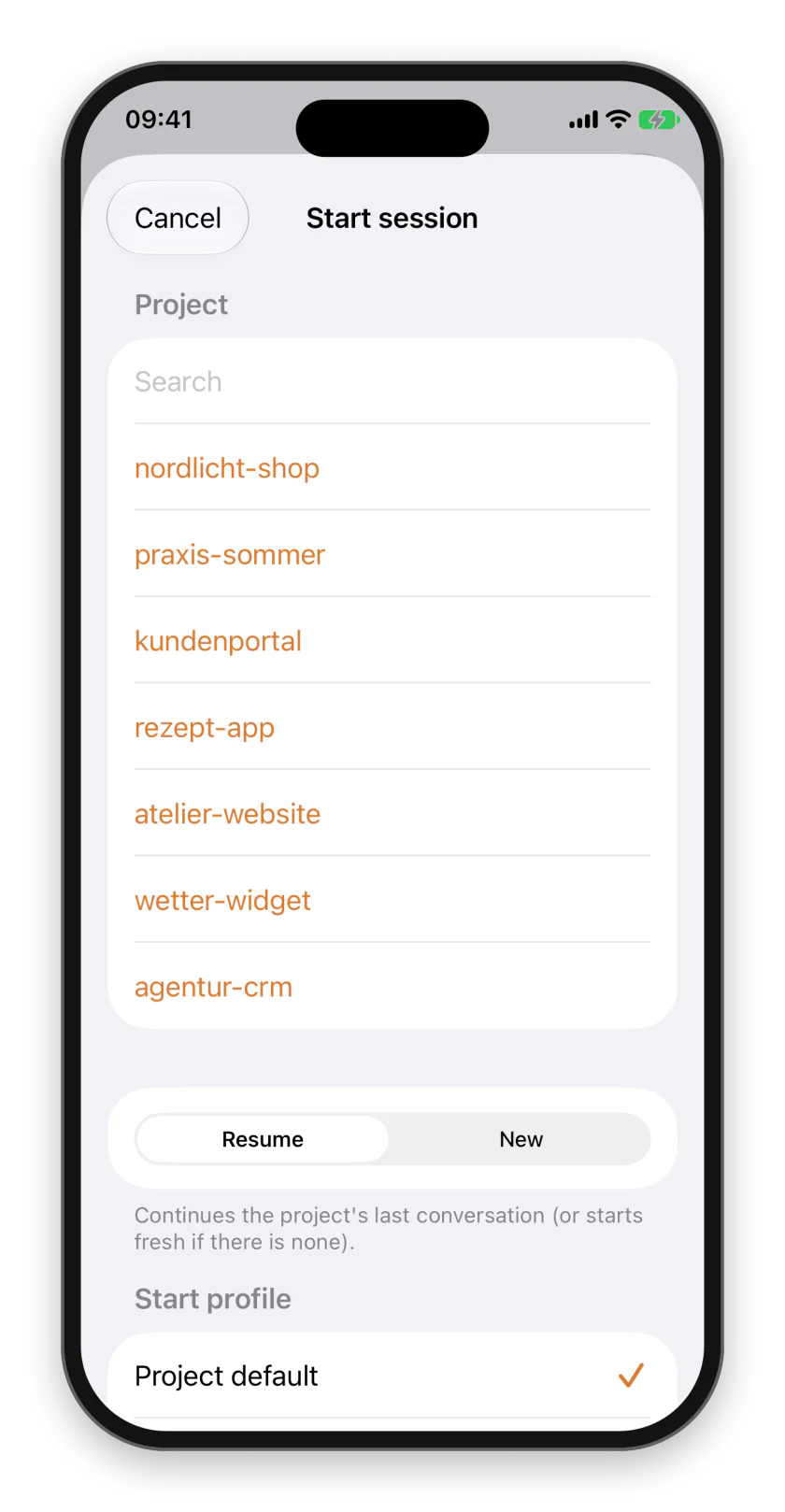
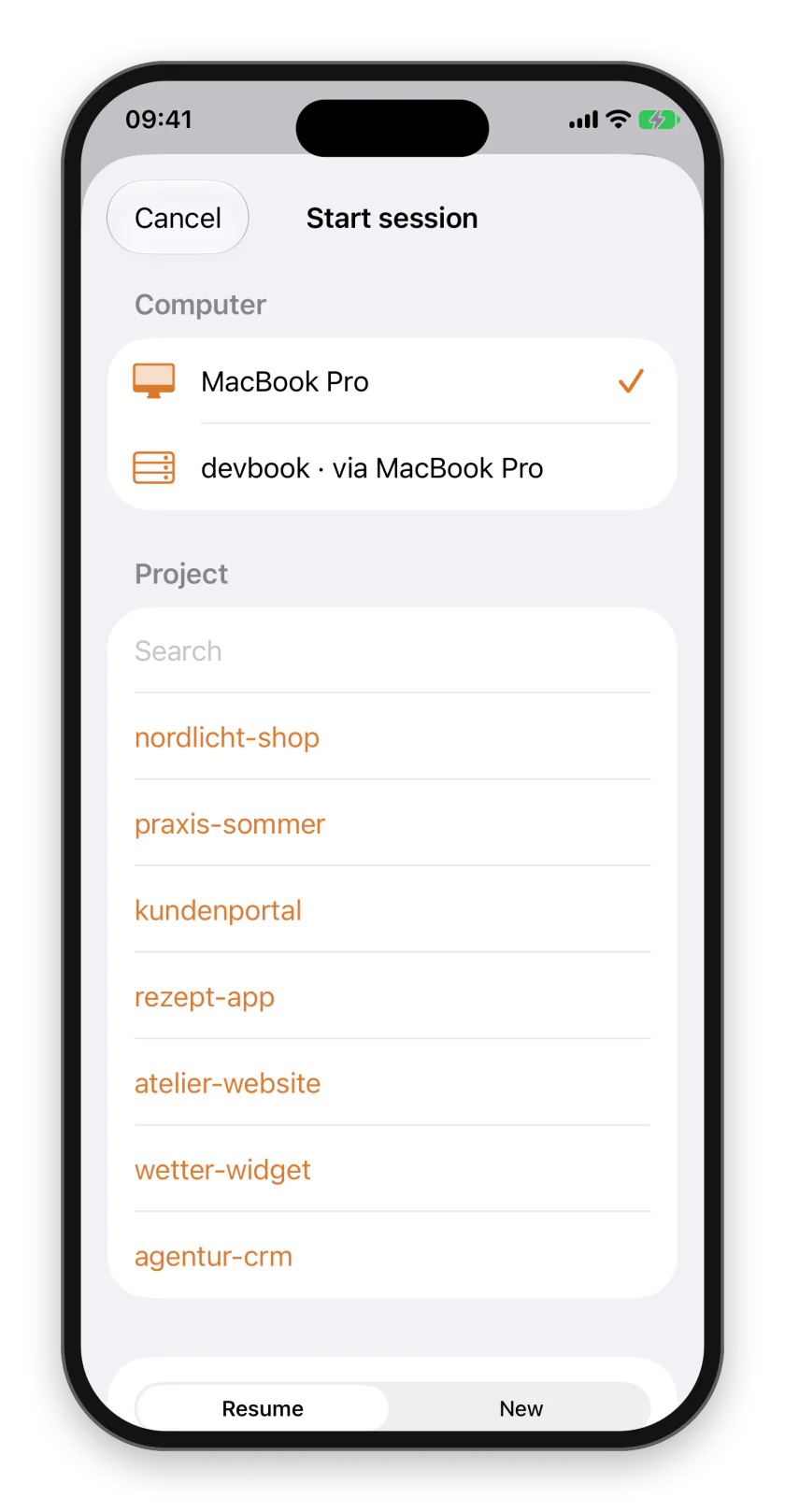
Start from your iPhone, keep working in the Claude app
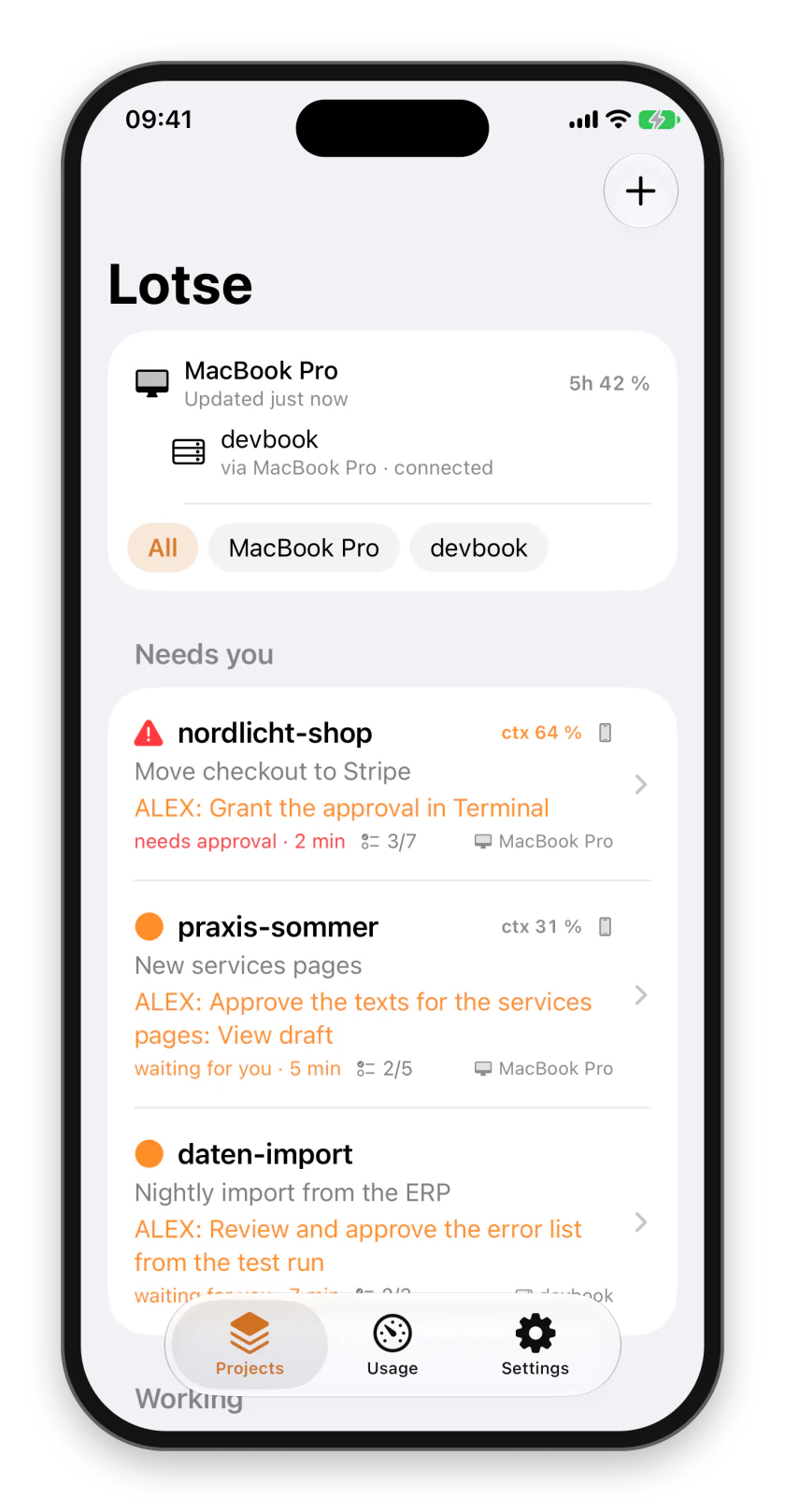
The Lotse app for iPhone shows all projects with state, next step, todo list and usage. On the go, you start a new session or continue a paused one – on your Mac, in the right folder and with the model you want.
With Remote Control, the session then appears in Anthropic’s Claude app. There you keep working as if you were at the terminal, approvals included.
-
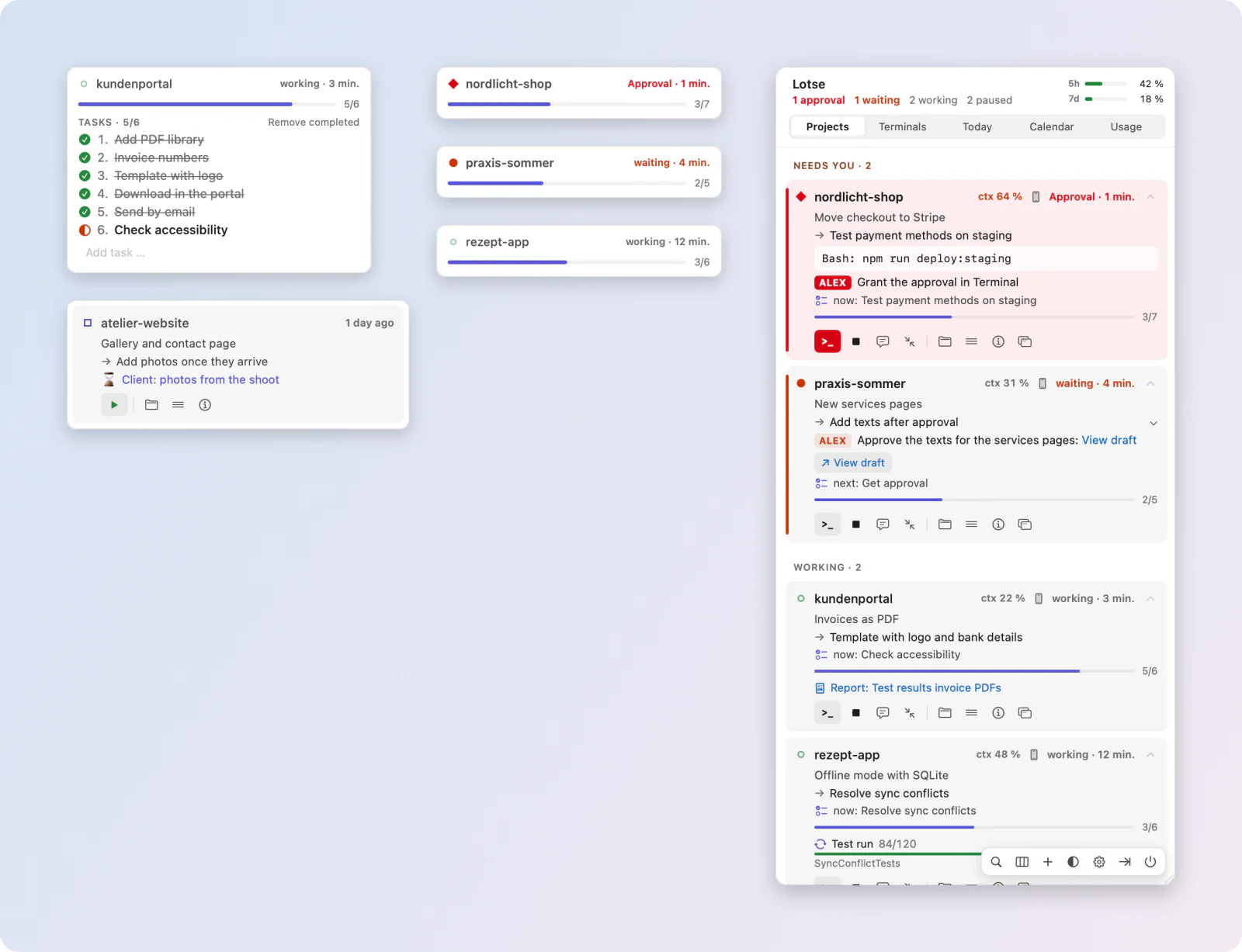
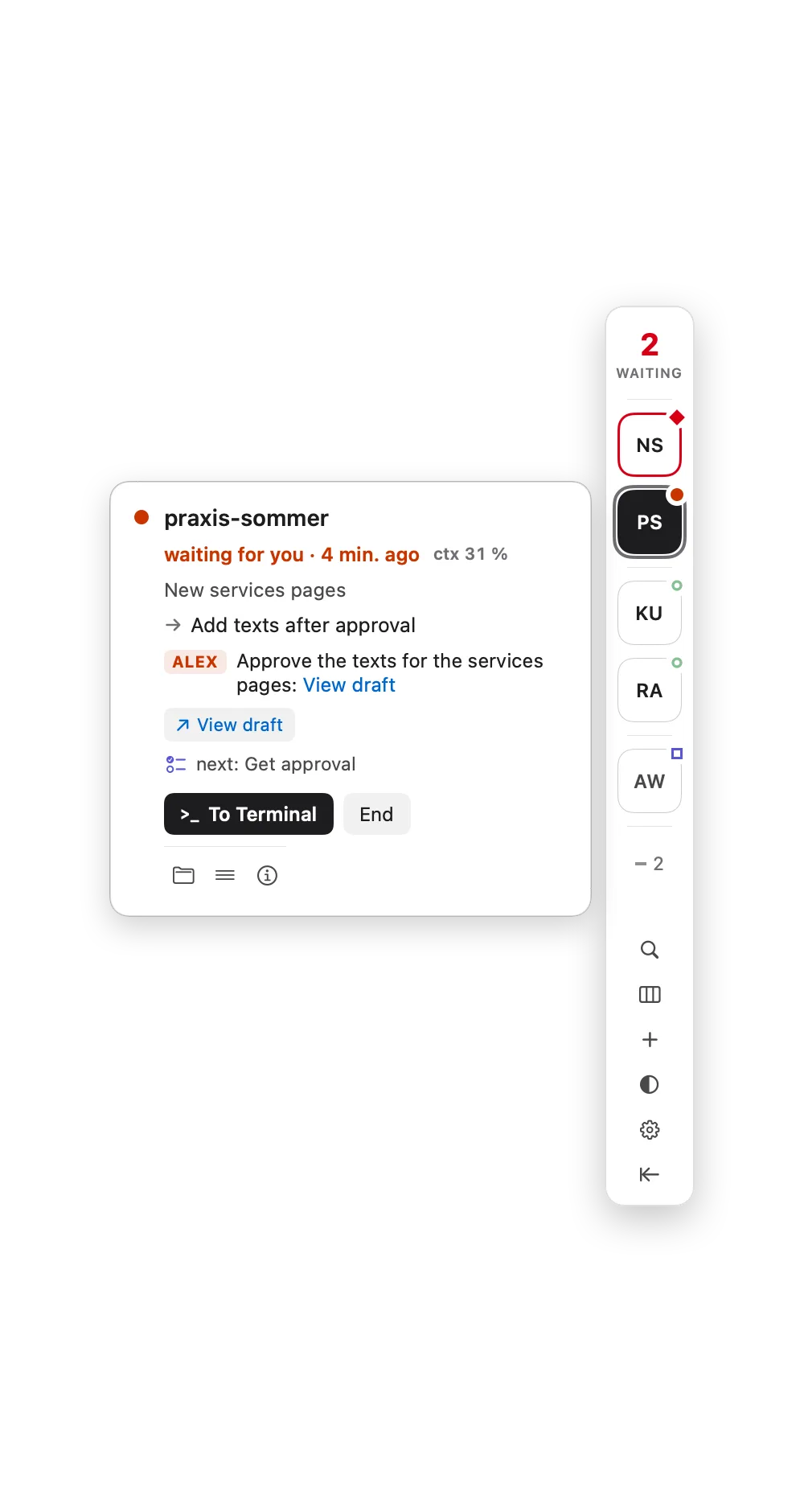
Pin projects to your screen as windows
Drag a project card out of Lotse and it floats as a small window of its own, right where you need it. The card stays in Lotse. There are three views:
- Mini: name, state, progress
- Todos: the checklist to tick off
- Full: the whole card with all buttons
The windows stay in front, on all desktops, and remember their position. A pinned window stays open even when the session ends. The result is a dashboard that survives starting and stopping.
-
Servers, VMs and multiple machines
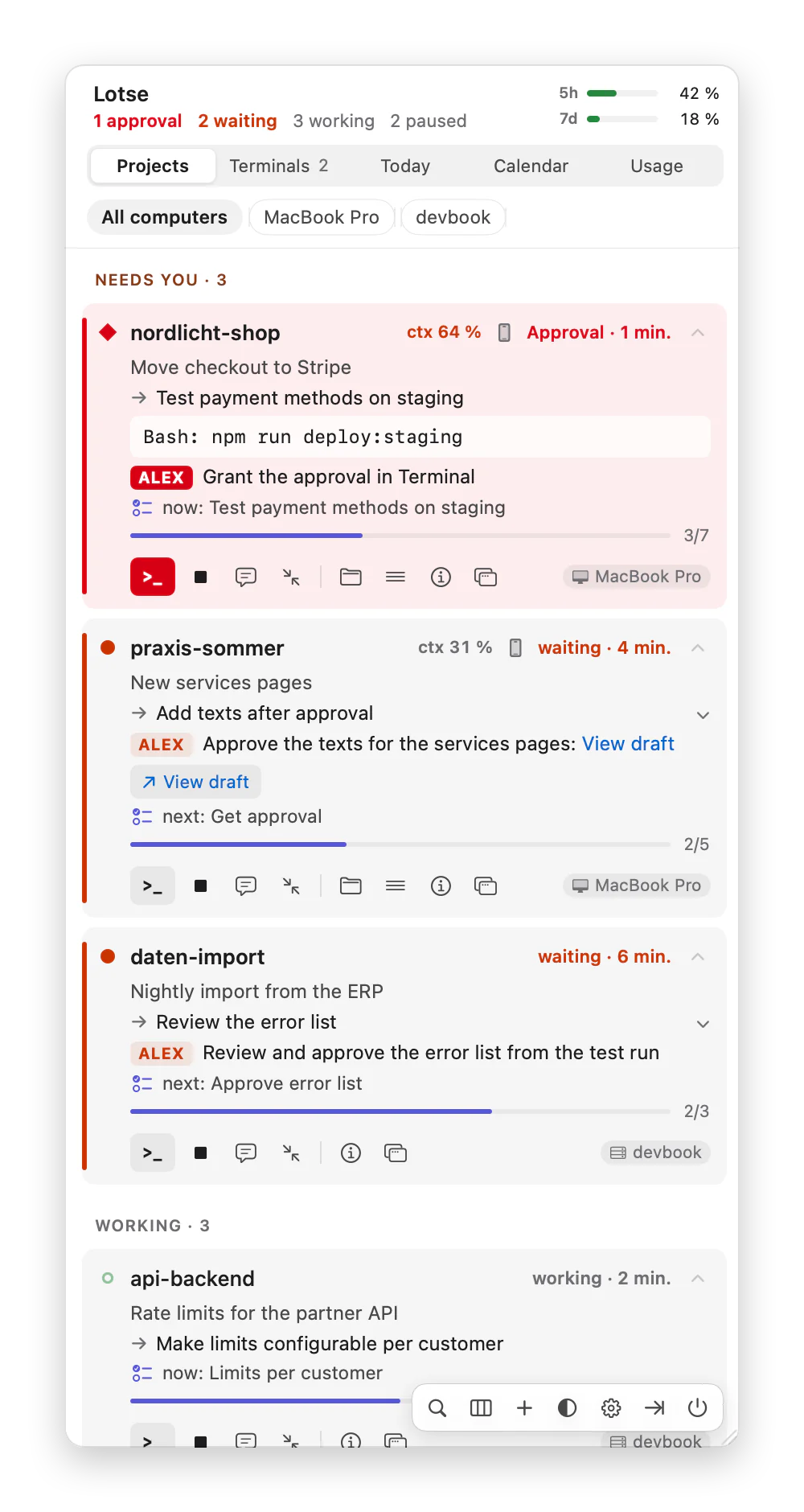
Does Claude Code also run on a VPS, a root server, in a VM or in WSL for you? Lotse brings those sessions in as if they were running on your Mac.
- Set up: add the server and click “Set up”. Lotse connects via SSH with your existing keys – no password, no open port and no service on the server.
- Same cards: server projects appear with their state, status, todos and notifications, on the iPhone too.
- With tmux on the server: reply,
/compact, end cleanly and restart. One click brings the matching terminal window to the front. - Multiple machines: a filter shows all machines or just one, and every card shows its machine. When you start a session, you choose where it runs: on your Mac, on the server or, from your iPhone, on a second Mac as well.
- Any terminal: the overview works with any SSH client, Termius included. Without tmux, you control the session through Remote Control in the Claude app.
“Within two days, Lotse became a central tool for me. I wonder why I waited so long to build it.”
Every feature in detail
Overview
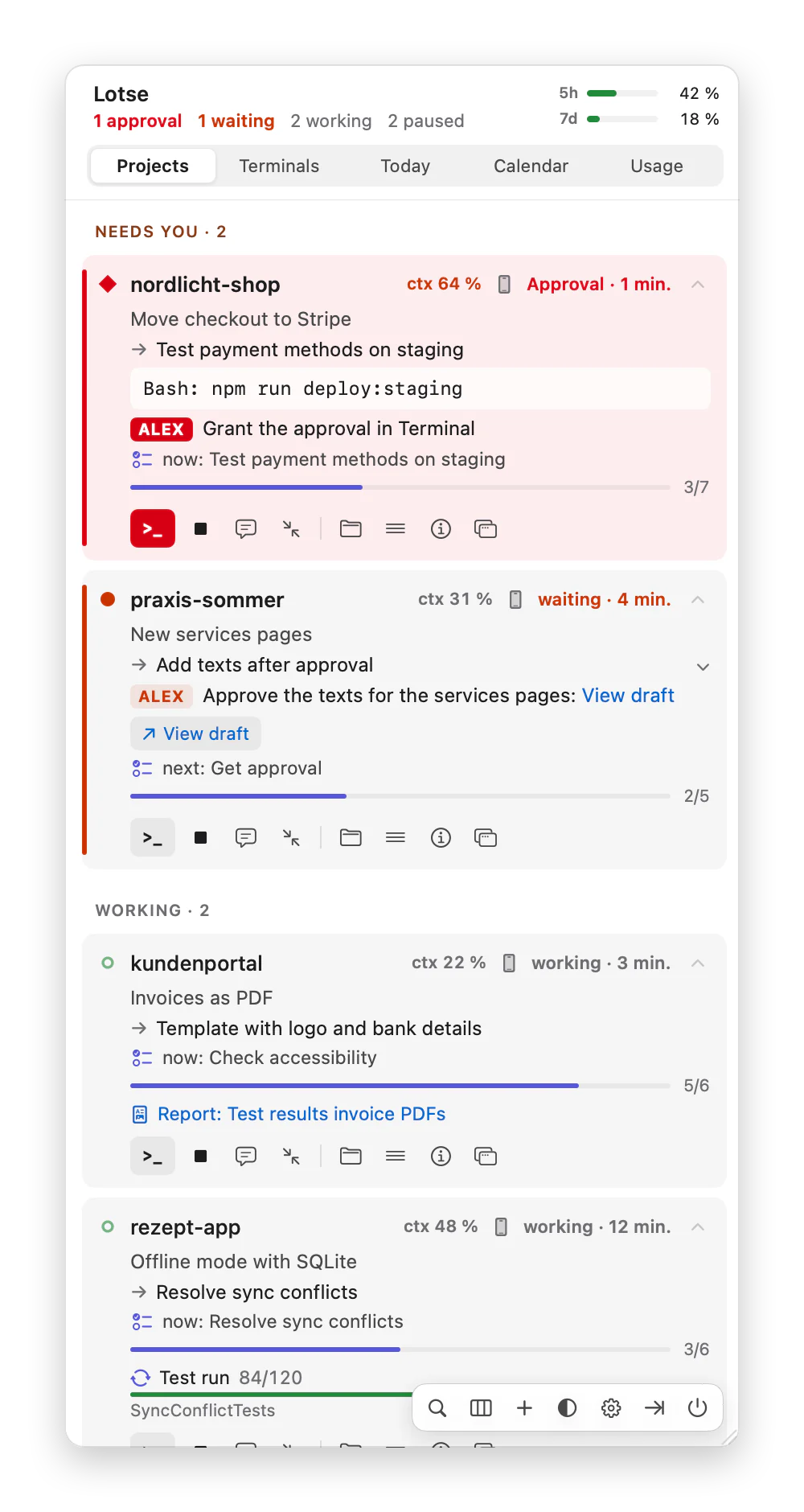
One card per session: working, waiting for you, needs approval, waiting on others or paused. Whoever needs you is at the top.
- Next step, “for you” and “waiting on” – Claude writes the status itself
- Todo list with progress: plan along, flag what matters, tick off
- One click to the right terminal, links open web pages, files and folders
- Context at a glance: “ctx 64%” on every card, with a warning from 80%
- Project search (⌘F) and a file view with Git status
- Collapse cards: title, progress and buttons stay visible
- Full cards or a narrow bar at the edge of the screen
Working with Claude
Reply straight from Lotse: the text lands in the session, without switching terminals.
- Start profiles: Fast (Haiku), Standard (Sonnet), Strong (Opus) or your own, with model and effort
- Model advisor: if an expensive Opus session has only been reading for 20 minutes, Lotse suggests Sonnet
/compactwith one click, sent only once the session is waiting- Notes that the next session receives at startup
- Runs with progress, such as “Import 45/120”, with a notification at the end
- Reports as a readable page, local and without external requests
Stay informed
Notifications on your Mac when approval is needed, a session has been waiting a while or the context is filling up.
- State in the terminal title, next step in the Claude Code status line
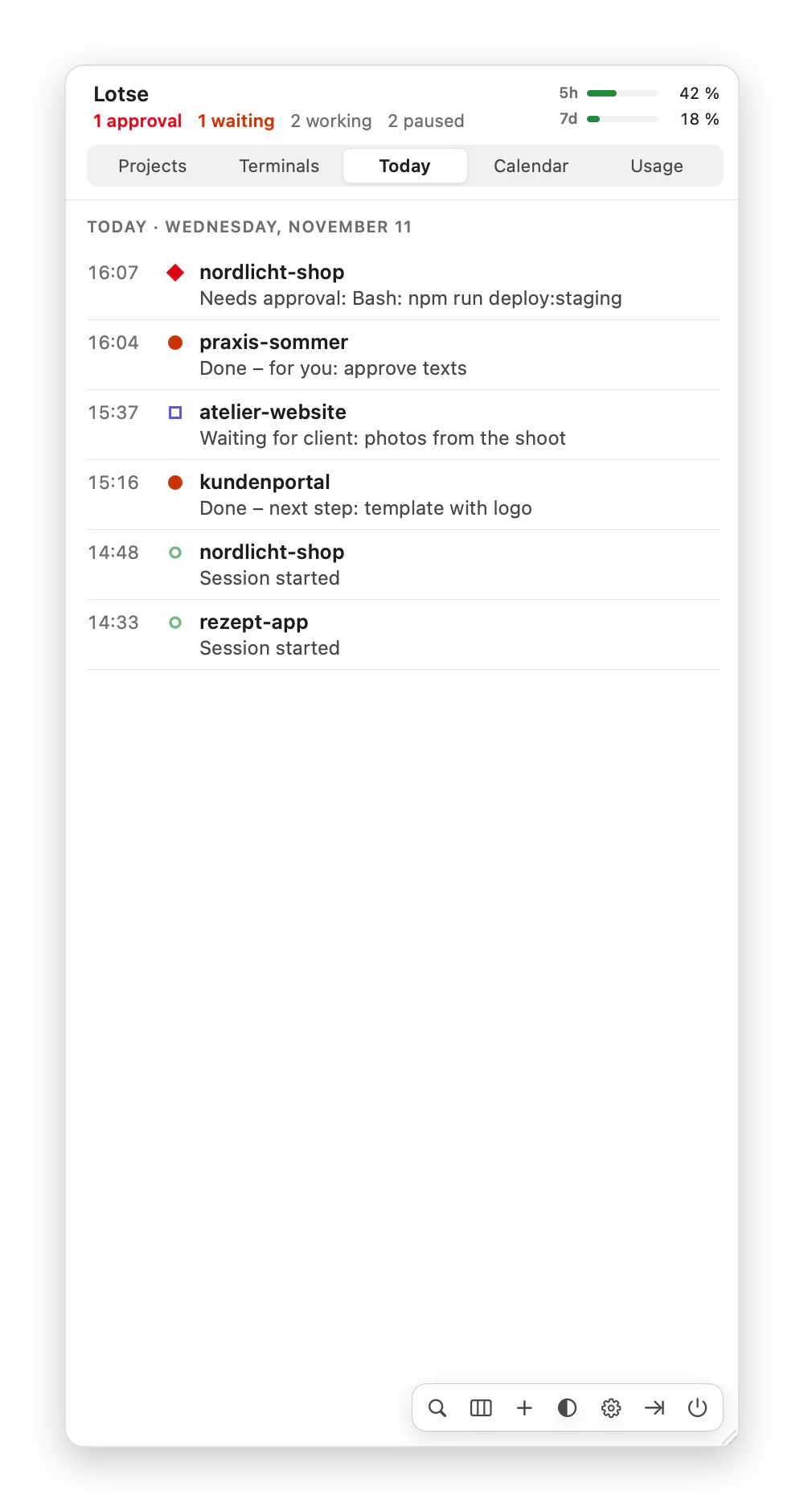
- Today: the timeline of your day
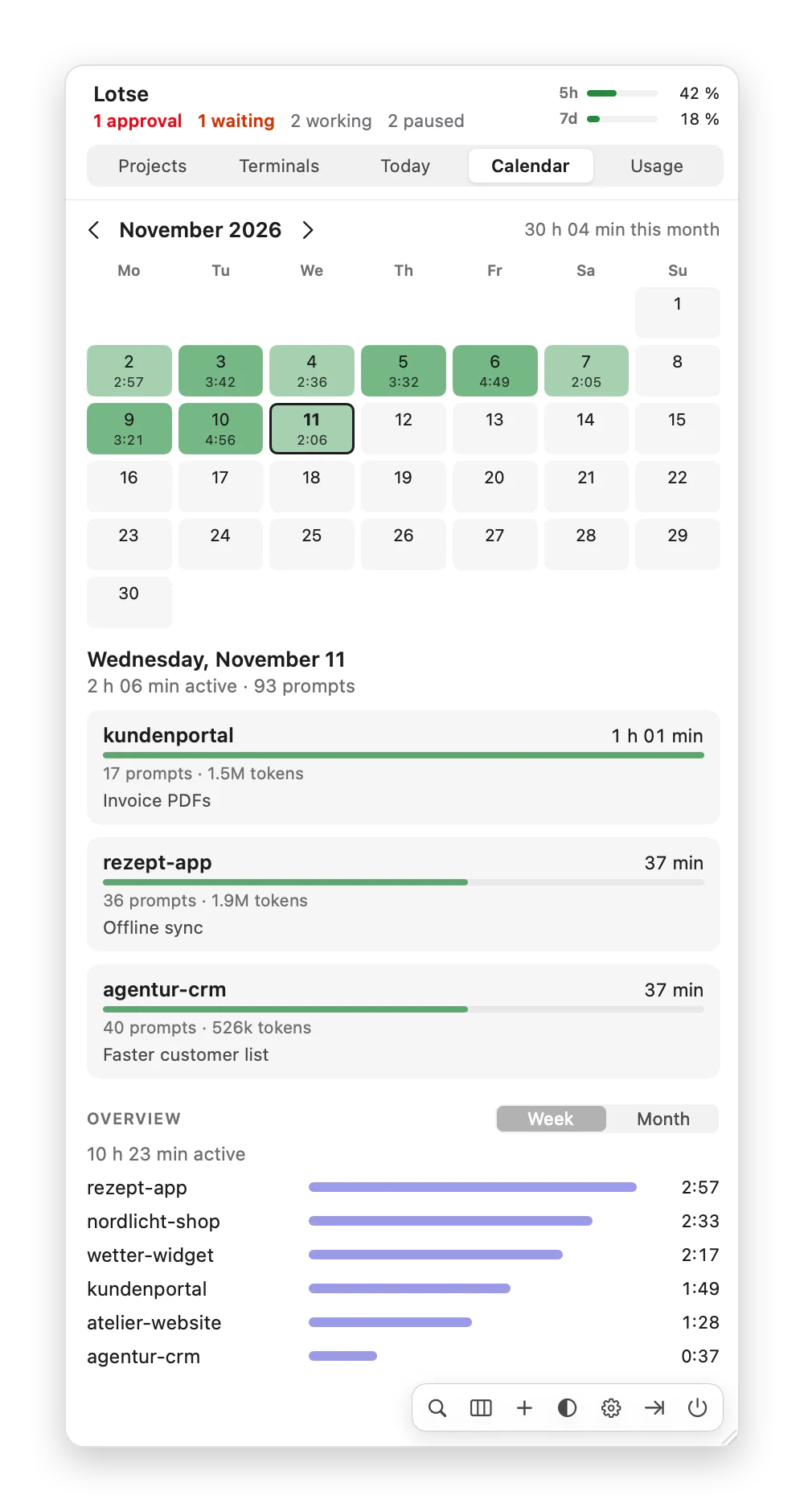
- Calendar: active time, prompts and tokens per day and project
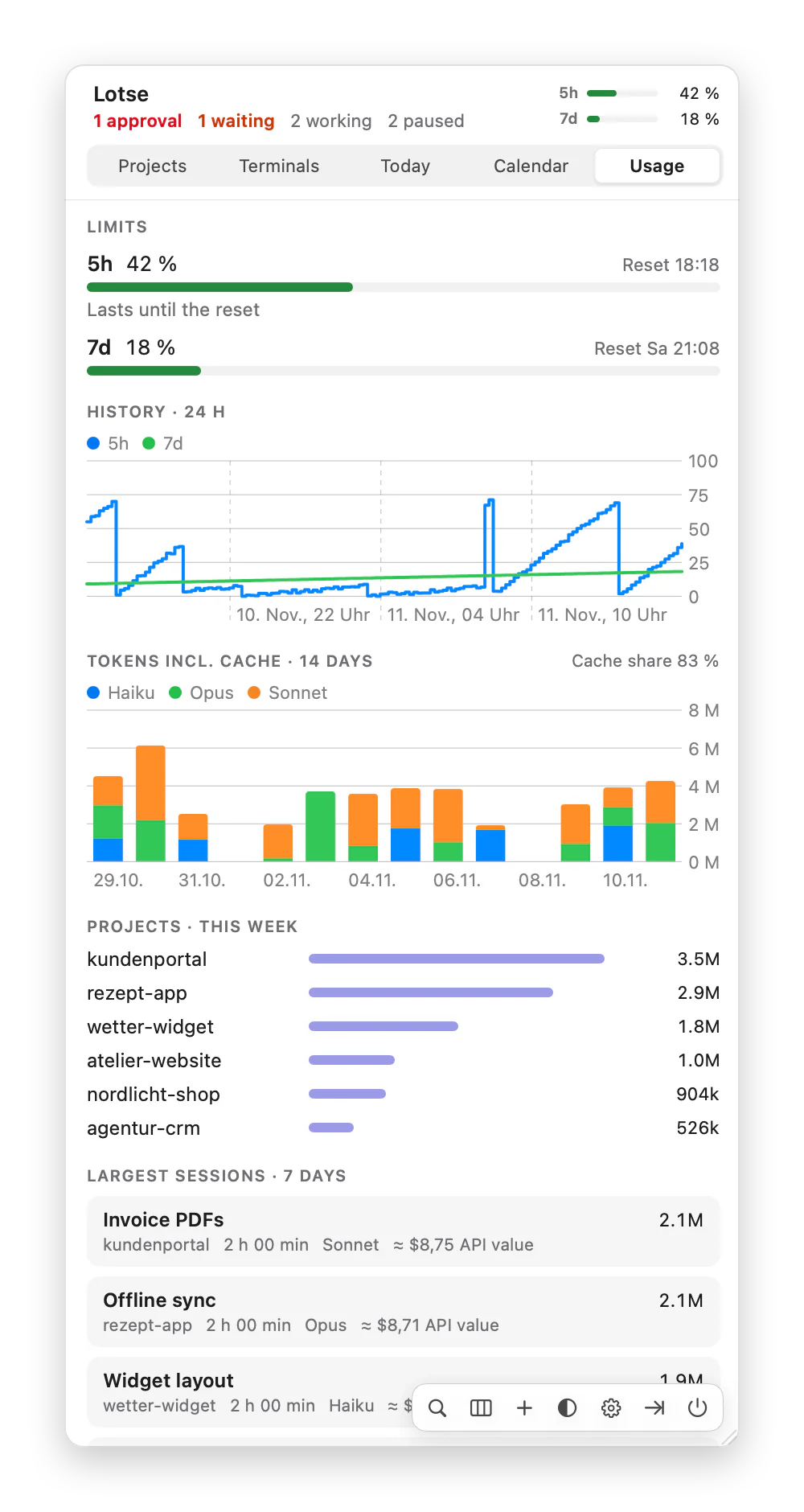
- Usage: plan limits for 5 hours, 7 days and per model, with a forecast
Lotse for iPhone
The companion app shows projects, todos and usage and starts sessions on your Mac or server.
- Tick off, add, delete and flag todos as important
- Start on the machine you choose (new or continue, with a profile) and end (documented or right away)
- “Open in the Claude app” for sessions with Remote Control
- Short replies,
/compactand fetching the status - Notifications, if you like only when you are away from your Mac
- You decide on your Mac what the iPhone may do
What it looks like
All screenshots with sample data.
From start to wrap-up
Lotse hooks into Claude Code. That is how it knows the state of your sessions, without costing tokens.
Session starts
A hook registers the session. Open todo items and your notes go to Claude.
Claude works
The card shows live whether Claude is working, waiting for you or needs approval.
/lotseClaude writes the title, next steps, what is done and the todo list, with links to every task.
/abschlussClaude documents the session. Then Lotse ends it and closes the tab.
Continue
One click starts Claude in the right folder with the last conversation, on your Mac or from your iPhone.
At a glance
- Who it is for
- For anyone who works with Claude Code directly in the terminal, especially with several projects or sessions at once – on Mac and Windows just as on servers, in VMs and in WSL
- Mac
- macOS 14 or later, Apple Silicon and Intel; signed and notarized by Apple
- Windows
- Windows 11 (x64), installed per user without administrator rights, everything included; signed. Windows 10 version 2004 or later should work but hasn’t been tested yet. While the publisher is still new to Windows, SmartScreen may warn on first launch: “More info” › “Run anyway”.
- Requires
- Claude Code and the macOS Terminal app. With iTerm2 and Ghostty, the overview works; jumping, arranging, replying and ending sessions do not work there yet. On Windows, Claude Code for Windows and Windows Terminal (included with Windows 11); other terminals haven’t been tested yet.
- Servers, VMs and WSL
- Lotse connects Claude Code on a Linux machine (VPS, root server, VM, WSL) via SSH, using the keys in
~/.ssh, with no service and no open port. “Set up” uploads the helper (x86_64 and ARM). Overview, todos, notifications and the iPhone work in any terminal, Termius included; replying, ending and starting need tmux on the server. On Windows, Lotse connects WSL directly, without SSH. - iPhone app
- iOS 17 or later, the same Apple ID as on your Mac. The Mac has to be awake to carry out commands; Lotse can keep it awake. The app is free on the App Store, with a demo to try it out; you unlock your own projects once for €4.99, no subscription. The phone apps don’t work with Lotse for Windows yet.
- Lotse Sync
- Optional: connects Android phones (app in testing) as well as servers, VMs and WSL even without a Mac, end-to-end encrypted through the Lotse relay in Germany. €2.99 a month or €24.99 a year, 14 days free when you first subscribe, or a one-time €74.99 for good. You sign up in the iPhone or Android app; all prices include VAT.
- Not supported
- The Claude desktop app and claude.ai without a terminal, containers without SSH. Windows on ARM hasn’t been tested yet.
- Languages
- German and English, light and dark
- Download and updates
- Mac: realmaker-Lotse.dmg, Windows: realmaker-Lotse-win-Setup.exe – free during the beta and always the latest beta version. After that, Lotse checks for updates once a day, can be switched off; on Windows, updates only download the changes
- Privacy
- Lotse privacy policy for the Mac, Windows, iPhone and Android apps
Ready in three steps
You then connect servers, VMs and WSL in the settings under “Servers”.
Install
Mac: open the DMG, drag Lotse to “Applications” and start it. Windows: run the setup; it installs without administrator rights.
Set up
The setup assistant guides you through five steps: language, project folder, connecting Claude Code, allowing Terminal control and notifications.
Get going
Start
claudein a project folder. The card appears by itself.
What to look for while testing
Lotse is still in testing. These three points interest me most.
Are the states right?
Working, waiting, needs approval: does each card show what is actually happening in the session?
Jumping and arranging
Does a click on
>_land in the right terminal? Does “Arrange” work on your monitors?/lotsein the sessionRun
/lotsein a session: do the status, next steps and todo list appear?
What is missing, what gets in the way? Everything is welcome – in Lotse via the menu bar › Send feedback, or by email to support@session-lotse.de.
Frequently asked questions
Does Lotse cost tokens?
Overview, states, arranging, notifications and usage cost no tokens: Lotse learns the state of your sessions through hooks. Only what Claude writes for Lotse costs tokens, for example with /lotse, and that is kept short. In the settings you see an estimate for each of these features and can switch them off one by one; expensive extras are off by default.
Where is my data?
On your Mac, in the folder ~/.lotse: settings, the state of each session and the status and todo list of each project. Lotse also reads what Claude Code stores itself: which sessions are running and when work last happened. If you connect a server, it has a ~/.lotse folder too; only the state of the sessions and your commands travel between server and Mac, over your own SSH connection. On Windows, the same folder is at %USERPROFILE%\.lotse. There is no telemetry. Only if you use Lotse Sync does data travel end-to-end encrypted through our relay. More in the Lotse privacy policy.
What goes through iCloud when I use the iPhone app?
Your Mac and iPhone sync through your private iCloud, with project data and commands encrypted. Only the title and text of notifications pass through Apple’s push service unencrypted. If you turn off “Show project name and text”, you only get a general notice without the project name. On your Mac, one button deletes everything Lotse has stored in your iCloud. Without the iPhone app, everything stays on your Mac.
How do I connect my iPhone?
If you turn off “Connect companion app” on your Mac under Settings › iPhone app, syncing stops. Data already stored remains in your iCloud, however. You can delete it in the same place with “Lotse data in iCloud: Delete …”:
Does Lotse work with Claude Code on a server?
Yes, from version 0.15. Add the server on your Mac under Settings › Servers and click “Set up”: Lotse connects via SSH with your keys from ~/.ssh and uploads a small helper (x86_64 and ARM). It needs no service and no open port on the server. You can also install the helper on the server yourself: curl -fsSL https://realmaker.de/downloads/lotse/install.sh | sh. Replying, ending and starting need tmux on the server; without tmux, you control the session through Remote Control in the Claude app.
What does Lotse change in Claude Code?
It sets up hooks and the skills /lotse and /abschluss, and on request the status line and terminal titles. It backs up your settings first. Under Settings › Remove you take everything out again; your data is kept.
How do new versions get to my Mac?
Once a day, Lotse checks for a new version and then shows you what is new. You can check for updates yourself at any time from the menu bar; the automatic check can be switched off.
Why does Lotse need to control Terminal?
So it can jump to the right terminal with one click, arrange the windows across your monitors, write replies into the session and end sessions.
Is Lotse made by Anthropic?
No. Session-Lotse is an independent tool by Michael Rademacher and is not affiliated with Anthropic. Claude is a trademark of Anthropic.